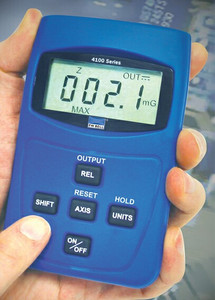
The Bell-4190 and Bell-5180 gaussmeters have a USB communications port for data logging, acquiring magnetic field readings onto a computer, and for remote operation and control.
The Bell-4180 has a USB port for controlling it but data logging software is not provided.
The Bell-5170 does not have a USB port.
To use the USB port you will need a USB cable with Mini USB Type B connector on one end. This is the same as used on many digital cameras, mobile phones, PDA, and MP3 players. You can purchase the USB cable here. It is not included with the gaussmeter since not all users need one:
USB Mini-B Cable: $19.
Examples of other USB cables which will also work are the following:
Radio Shack Model 26-176: A/Male to Mini USB B/Male Cable (price $23.99 from Radio Shack)
Belkin Part # F3U138-10: USB 2.0 5-Pin Mini-B Cable
To Use the USB Port on the Bell-5180:
Place the Bell-5180 CD into a Windows computer and run Setup. It will automatically install the required driver files. The driver files should now be in C:\>:\Program Files\FW Bell\PC5180\Driver\
Then insert the USB cable into your computer and into the Mini USB port of your gaussmeter. We recommend a direct connection of the 5180 to your computer without going through a USB hub, since a hub can sometimes cause problems with some devices.
At this point the Windows New Hardware Wizard should pop up. It asks "Can Windows connect to Windows Update to search for software? Select "No", and NEXT. Select "Install from a list or specific location" and NEXT. Select "Search for the best driver in these locations" and check the box "Include this location in the search" A box will pop up called Browse For Folder and it says "Select the folder that contains drivers for your hardware". Select C:\ drive and folders until C:\>:\Program Files\FW Bell\PC5180\Driver\ is selected. Click OK, NEXT, and FINISH. You are now ready to use the USB.
The CD will have also put an Excel spreadsheet (.xls) file into your C:\WINDOWS\system32 directory of your computer, which you can copy and use to display the readings from your 5180 gaussmeter on your computer if you have Microsoft Excel.
Any other Lab program such as Labview can also be used, although those would require entering the correct commands to acquire the data and control the instrument.
The instruction manual for the 5180 is on the CD, and it can also be viewed online by clicking here.
Chapter 4 describes remote operation. Some briefer information on Remote Operation is also available by clicking here.
To Use the USB Port on the Bell-4190:
Insert the USB cable into your computer and into the Mini USB port of your gaussmeter.
Also see instructions on page 4-1 of the 4100 Series Instruction Manual, which is on the CD or it can be viewed online by clicking here. The data logger function downloads measured 4190 data to a .csv text file format, which allows the data table to be easily opened by a variety of applications including ASCII text editors, word processors, and applications which view data in column format such as spreadsheets (e.g. Excel) which will show better formatting of the data.
Software development for the Bell-4190 and 4180 using an API:
For 4180/4190 software development with third party Application Programming Interface (API), both the 4180 and 4190 may be controlled by customer written software through the API file fwb4100.dll. Many higher level programming languages and development environments allow calls to functions in an API (DLL) file. Refer to the fwb4100.chm file on the CD or located in the same folder where you installed the files for the 4100 (typically C:\Program Files\FW Bell\PC4190) for documentation regarding use of the functions in this API. This should be accessible by clicking on: Start / Programs / FW Bell / 4100 API Help.